Create your account
Sign up, confirm your email, and find your way around. About five minutes, and nothing you pick here is permanent.
Getting set up takes about five minutes. You create an account, confirm your email, read three short agreements, and then choose where to begin. Nothing on these screens locks you in, and you can come back to anything later.
This guide walks through each screen in order. Screenshots show a desktop browser beside the same screen on a phone; select any screenshot to see it full size.
1. Create your account
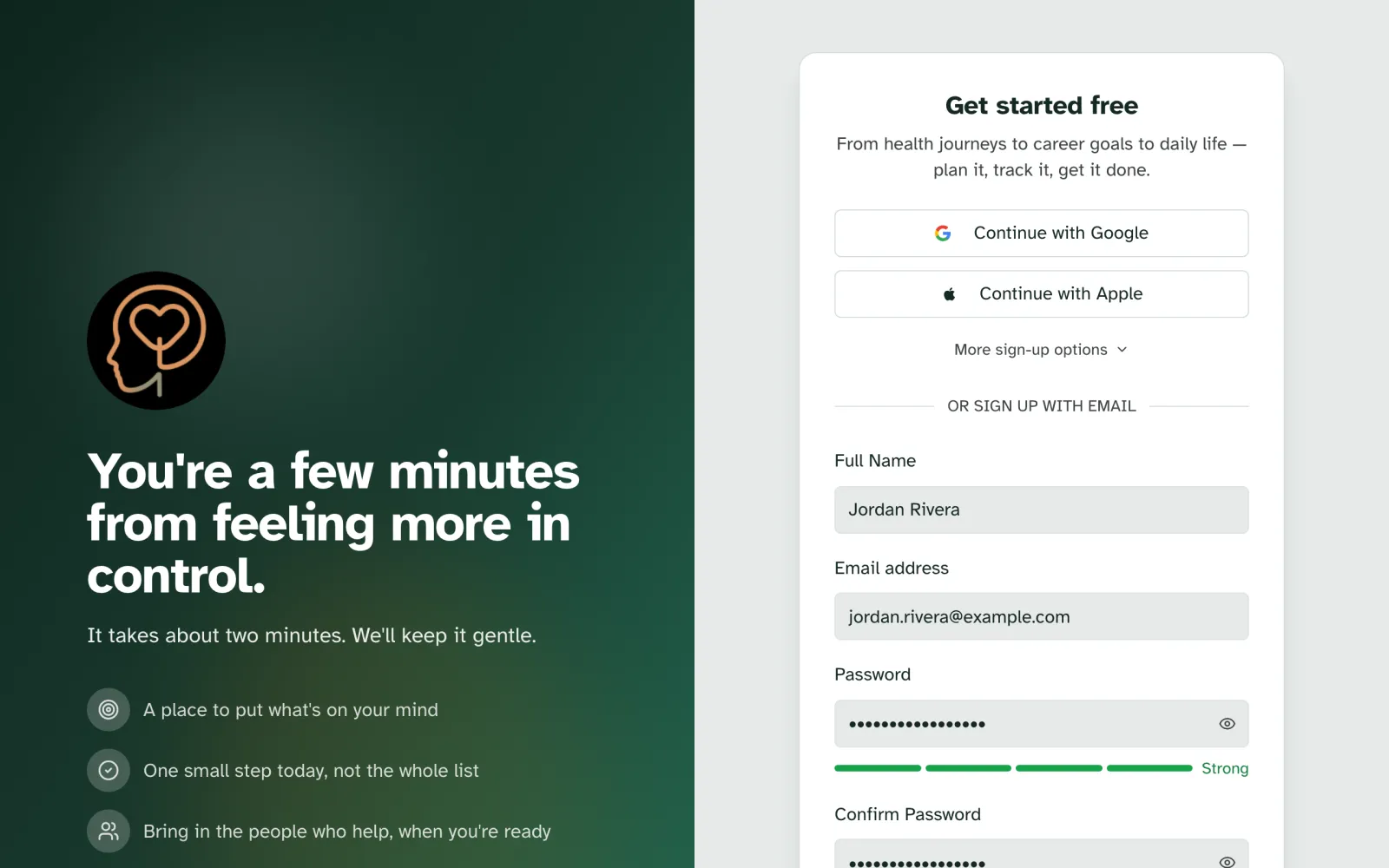
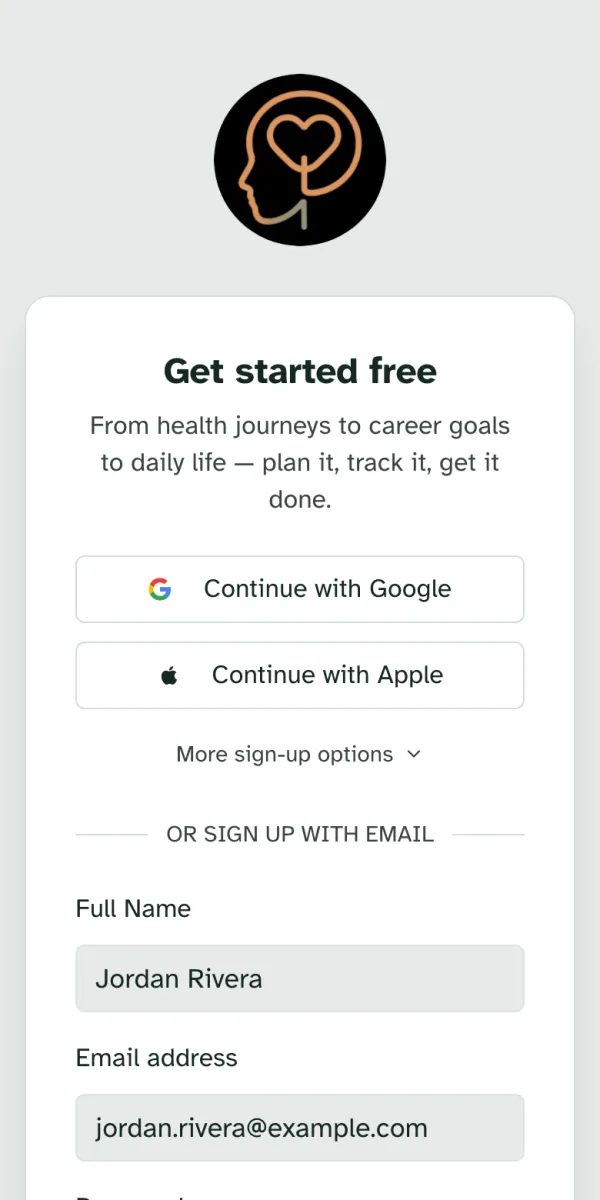
Go to specthrive.com and choose Start your first plan. The sign-up page opens with the heading Get started free.
The quickest way in is the account you already use. Continue with Google and Continue with Apple skip the password entirely. More sign-up options adds Microsoft.
Or sign up with your email. Fill in your Full Name, Email address, a Password of at least 10 characters, and the same password again in Confirm Password. A small meter under the password shows how strong it is. Then choose Create account.
2. Confirm your email
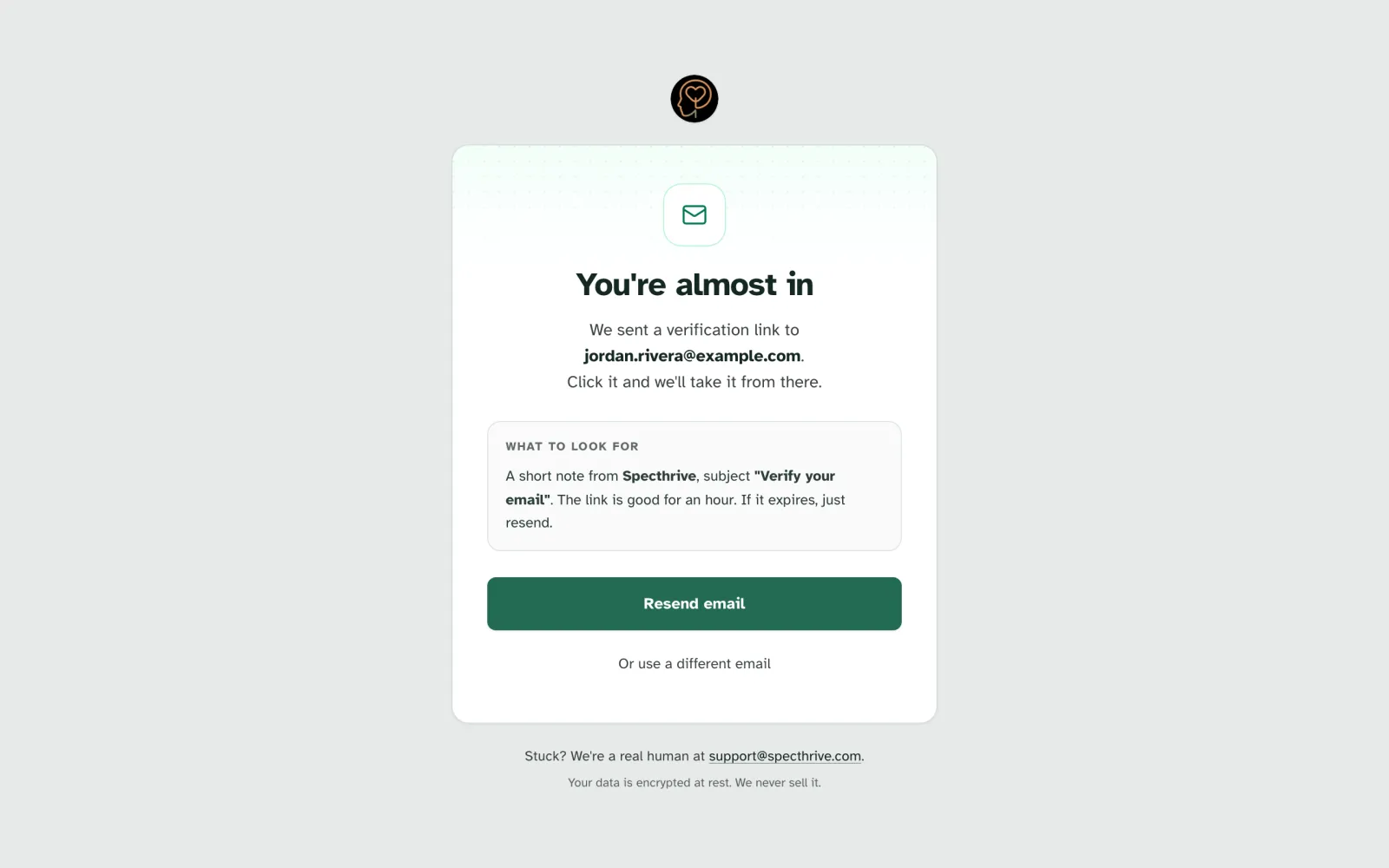
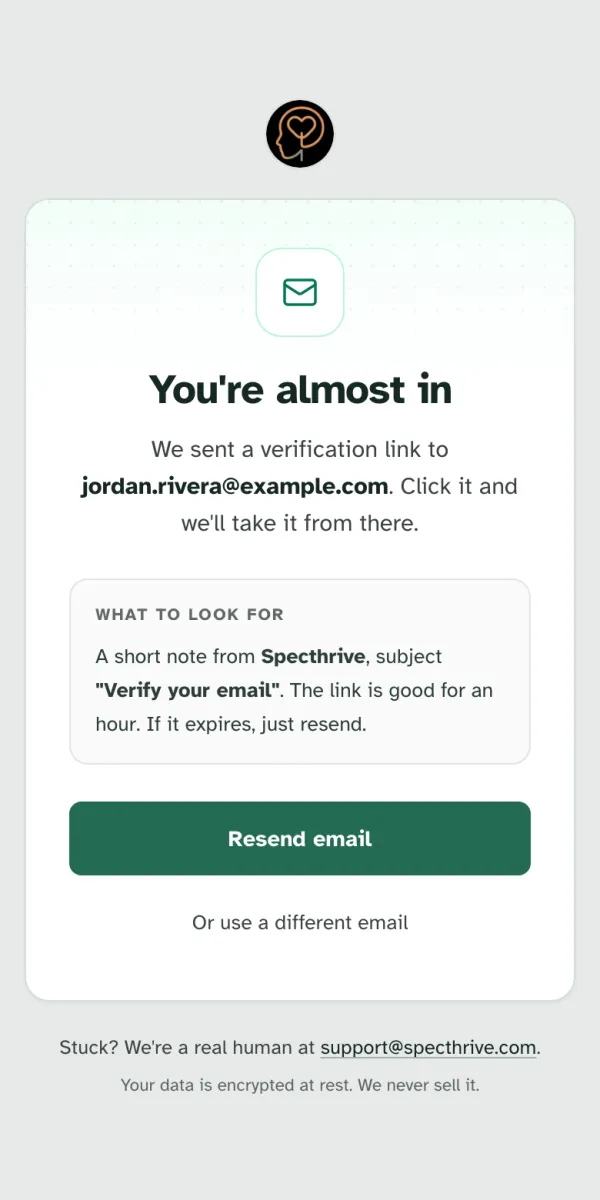
If you signed up with an email address, the next screen says You're almost in. We have sent you a short email from Specthrive with the subject Verify your email. Open it and choose the link inside. The link works for an hour.
Nothing arrived? Check your spam or promotions folder first. Then choose Resend email for a fresh link, or Or use a different email if you spotted a typo.
3. Before we begin
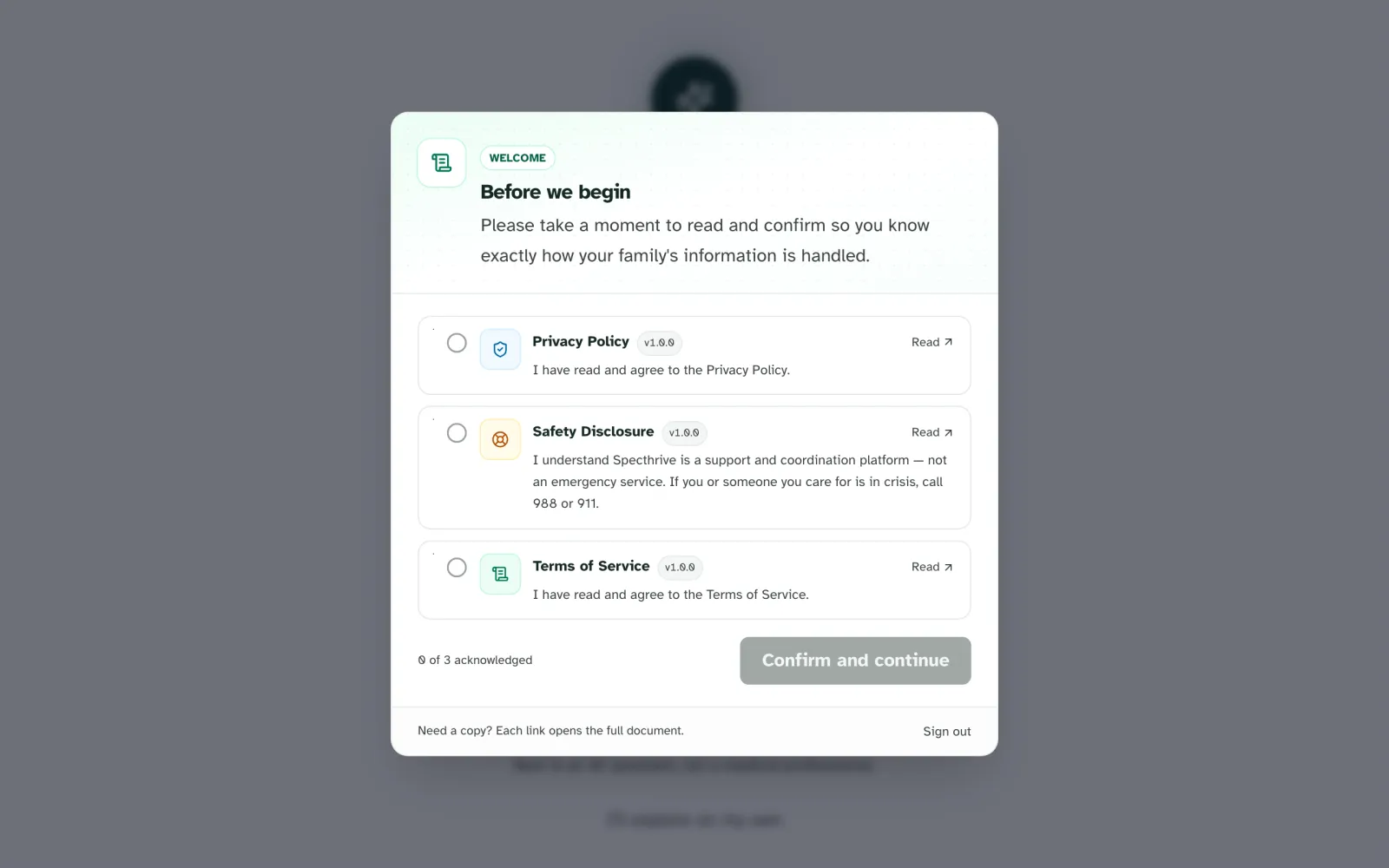
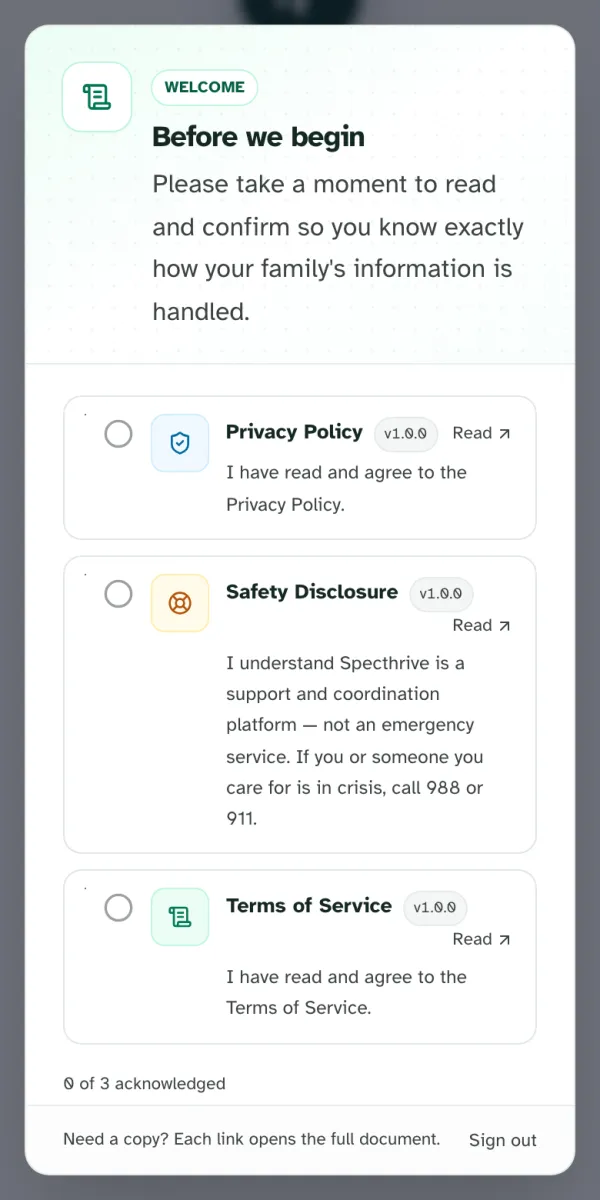
The first time you sign in, a short window titled Before we begin asks you to read and confirm three things:
- Privacy Policy: how your family's information is handled.
- Safety Disclosure: Specthrive is a support and coordination tool, not an emergency service. If you or someone you care for is in crisis, call 988 or 911.
- Terms of Service: the agreement for using Specthrive.
Each one has a Read link that opens the full document. Tick all three, then choose Confirm and continue. You only see this once, and again only if one of the documents changes.
4. Choose where to start
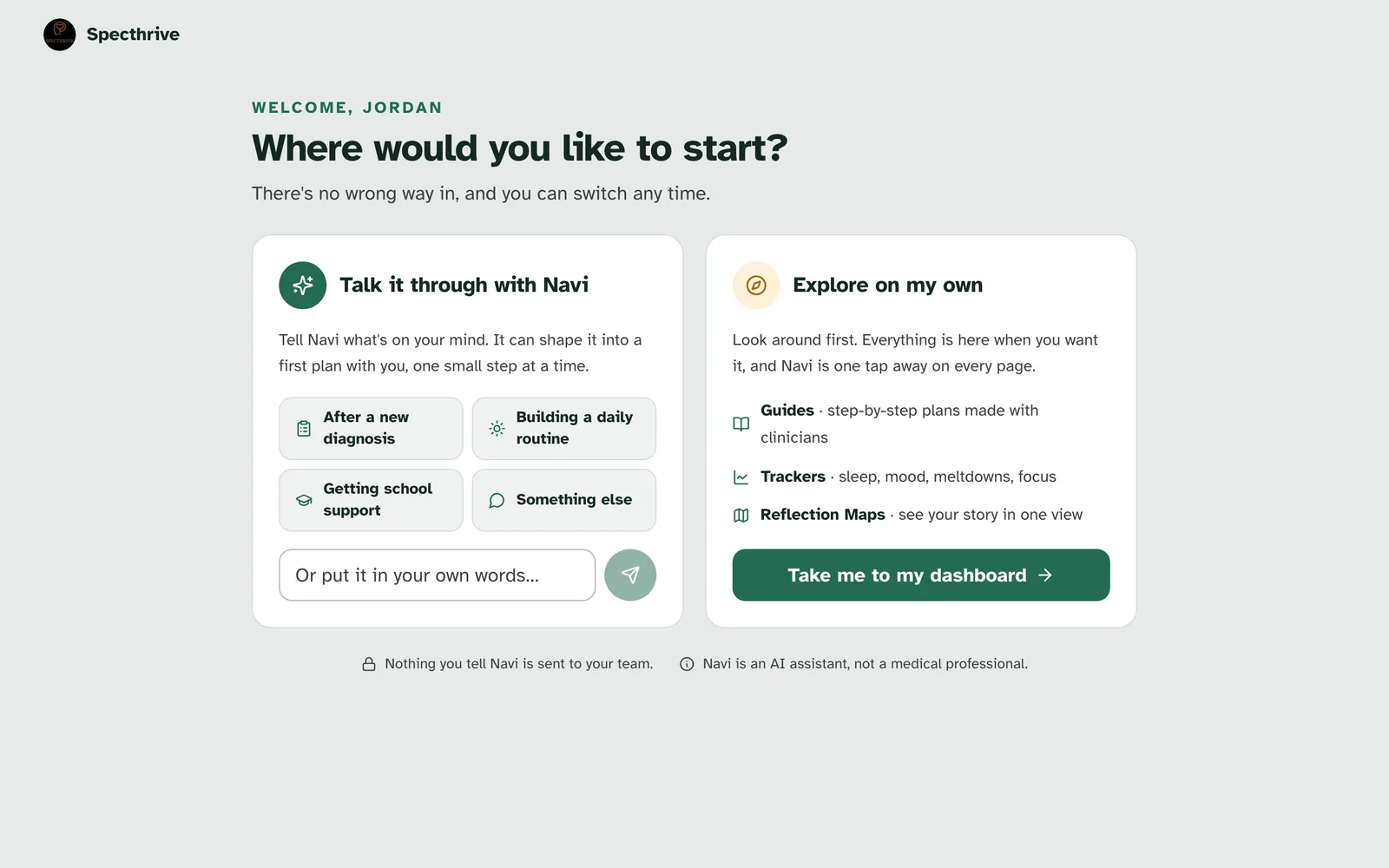
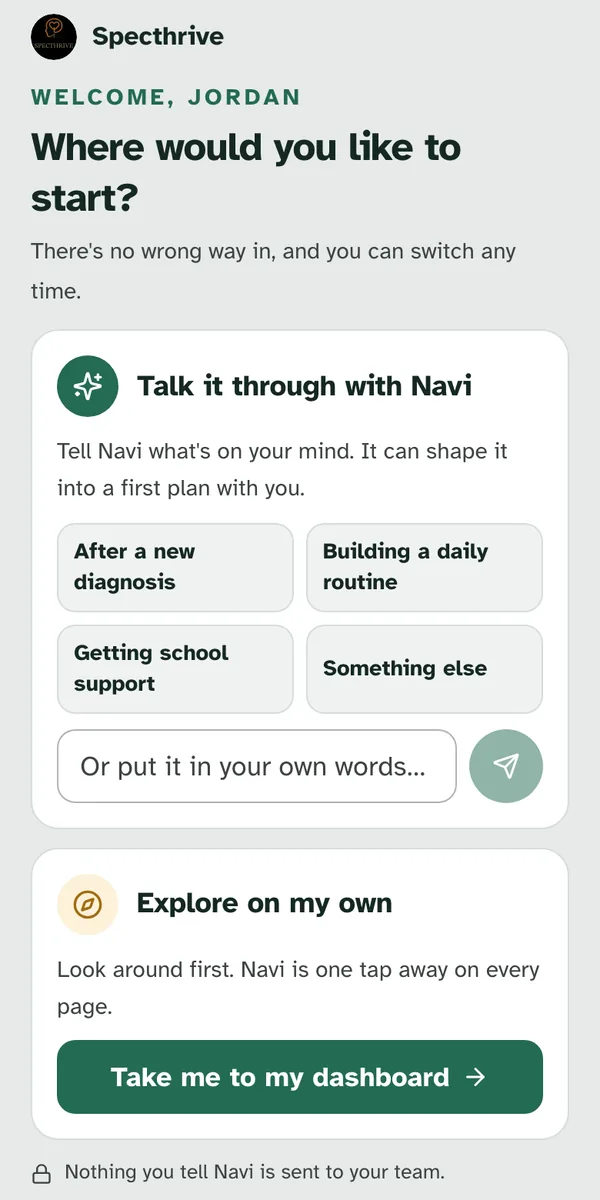
Next comes one question: Where would you like to start? There are two ways in, and neither is the wrong one.
Talk it through with Navi. Navi is Specthrive's assistant. Tap whichever starting point is closest (After a new diagnosis, Building a daily routine, Getting school support or Something else) or put it in your own words. Navi helps with the practical side: schedules, plans, what to try next. It can set up your first plan with you. It will not diagnose or interpret anything clinical.
Nothing you tell Navi is sent to your team. These conversations are yours.
Explore on my own. Rather look around first? Choose Take me to my dashboard. You can open Navi later from the Ask Navi button on any page, and if you start a conversation and change your mind, I'll explore on my own takes you to the dashboard from there too.
5. Your dashboard
Your dashboard opens with a card headed Start here: "Pick whatever fits right now. The rest will still be here." It offers three ways in:
- Track something: notice patterns in sleep, behavior and mood. See Notice patterns with trackers.
- Reflect on a hard moment: make sense of a tough stretch. See Look back with a Reflection Map.
- Follow a Guide: a step-by-step plan, one piece at a time. See Find a guide and make it yours.
You do not have to do all three, or any of them today. Most people start with a guide.
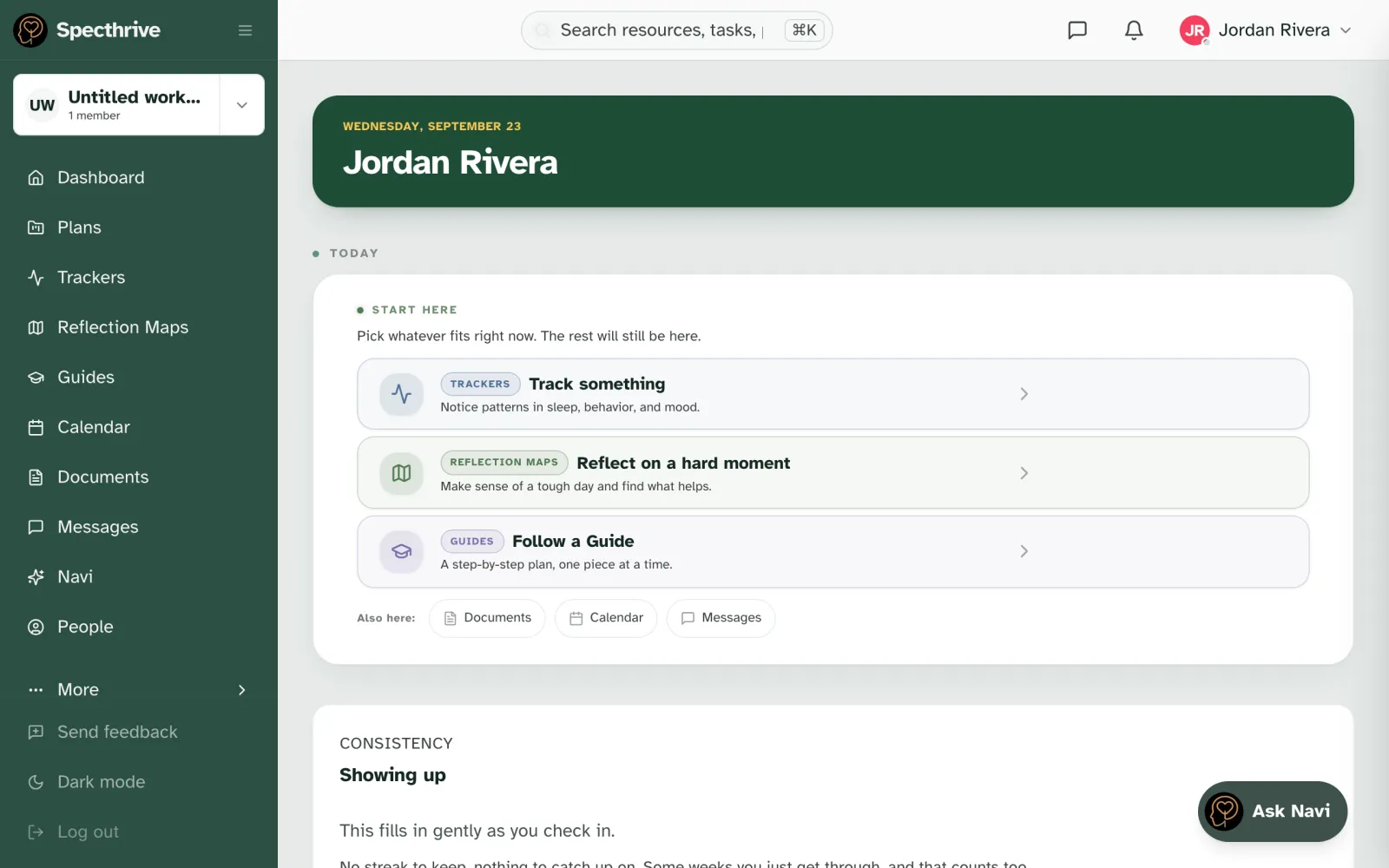
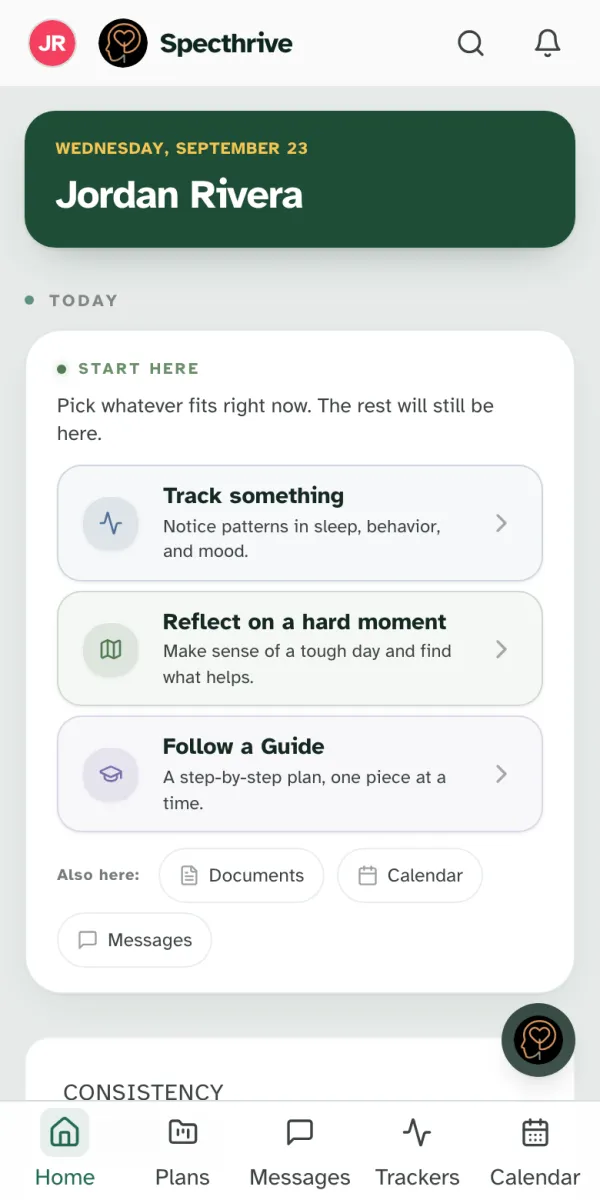
Finding your way around. On a computer, everything is in the sidebar on the left. On a phone, the bar along the bottom holds Home, Plans, Messages, Trackers and Calendar, and your initials at the top open everything else.
Setting this up for someone you care for? Your account comes with a workspace, which starts out as "Untitled workspace". Setting up your family workspace covers naming it, adding the person you care for, and inviting a co-parent or grandparent. That way everyone sees the same plans.
Still have a question?
If this guide did not cover your situation, reach out. We read every message.