Join and run a practice
For coaches and clinicians. What a practice is and isn't, joining one, managing its members, and the tools a practice gives you.
A practice is how a coaching or clinic team works together on Specthrive. Joining one gives you the practice's tools for the clients you already work with. That is all it does.
A practice is not a workspace, and it never sees your clients. It doesn't appear in your workspace switcher, it doesn't manage anyone's profile, and it can't open your clients' records. Each client still decides what you, and only you, can see. If you leave the practice, nothing changes for your clients.
This guide covers how a practice gets set up, joining one, what you see once you're in, and, for owners and admins, managing the members. For the rest of the professional side, start with Getting started as a coach or therapist.
Setting up a practice
The Specthrive team sets up every practice. There is no button to create one yourself. To ask for one, get in touch, choose Professional (coach, therapist or clinician) under "I am a...", and tell us three things: the practice's name, whether it is a coaching or a clinic practice, and the email address of the person who will own it.
We create the practice and invite that person as its owner. They get the invitation email described below. Once they join, the owner, and any admins they choose, invite everyone else from Settings → Practice. The Specthrive team also decides which tools the practice has, and verifies each professional.
Joining a practice
It starts with an email. Its subject reads "You're invited to join" and the practice's name. It says who invited you, the role you're invited as, and that joining "doesn't share anyone's records with the practice". The View invitation button opens the invitation. The link lasts 48 hours.
The invitation page asks one question: "Join" and the practice's name. It shows the practice, Your role and Invited by, and two plain promises: "You'll be able to use the practice's tools with clients you coach." and "The practice can't see your clients or their records. Each client decides what you can see."
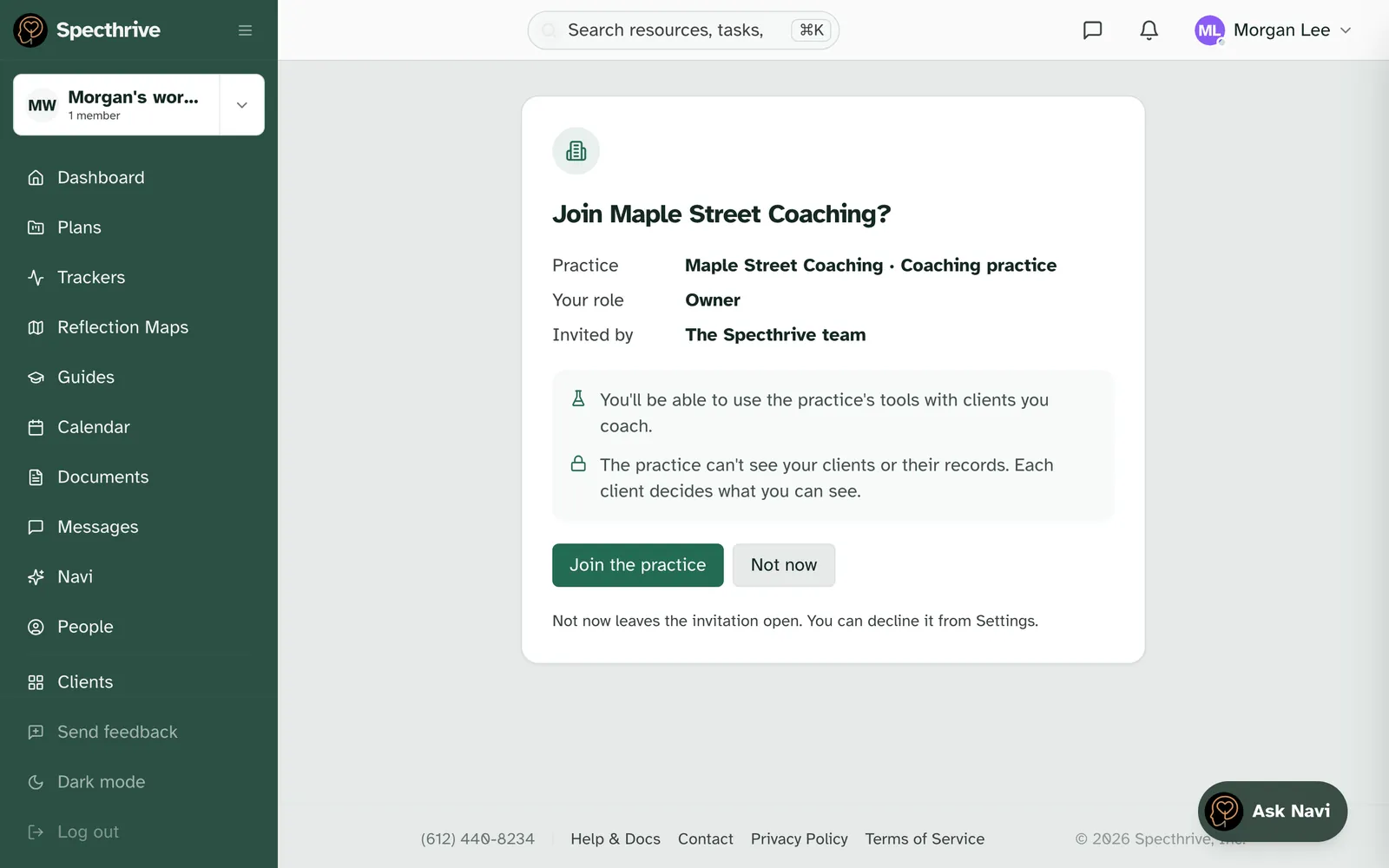
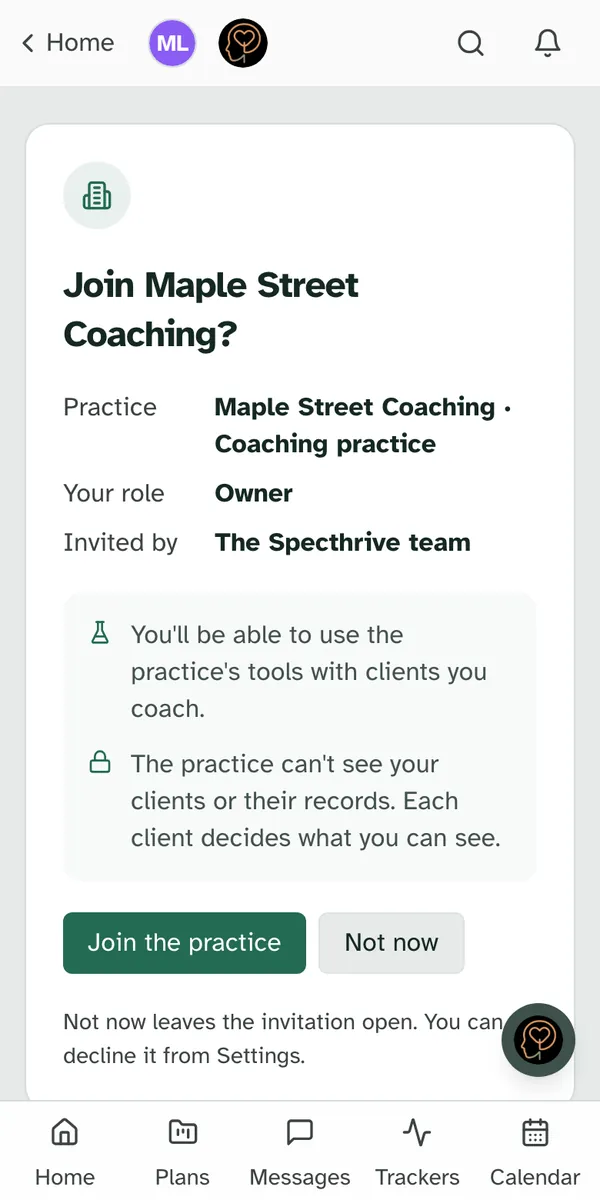
Choose Join the practice, or Not now. "Not now leaves the invitation open. You can decline it from Settings." There is no rush and nothing is lost by waiting, until the link runs out. If your email address isn't verified yet, the note reads "Not now leaves the invitation open. Once your email is verified, you can decline it from Settings."
You can also answer from Settings. While an invitation is open, Settings → Practice shows it as a card headed "Invitation:" and the practice's name, with Join and Decline.
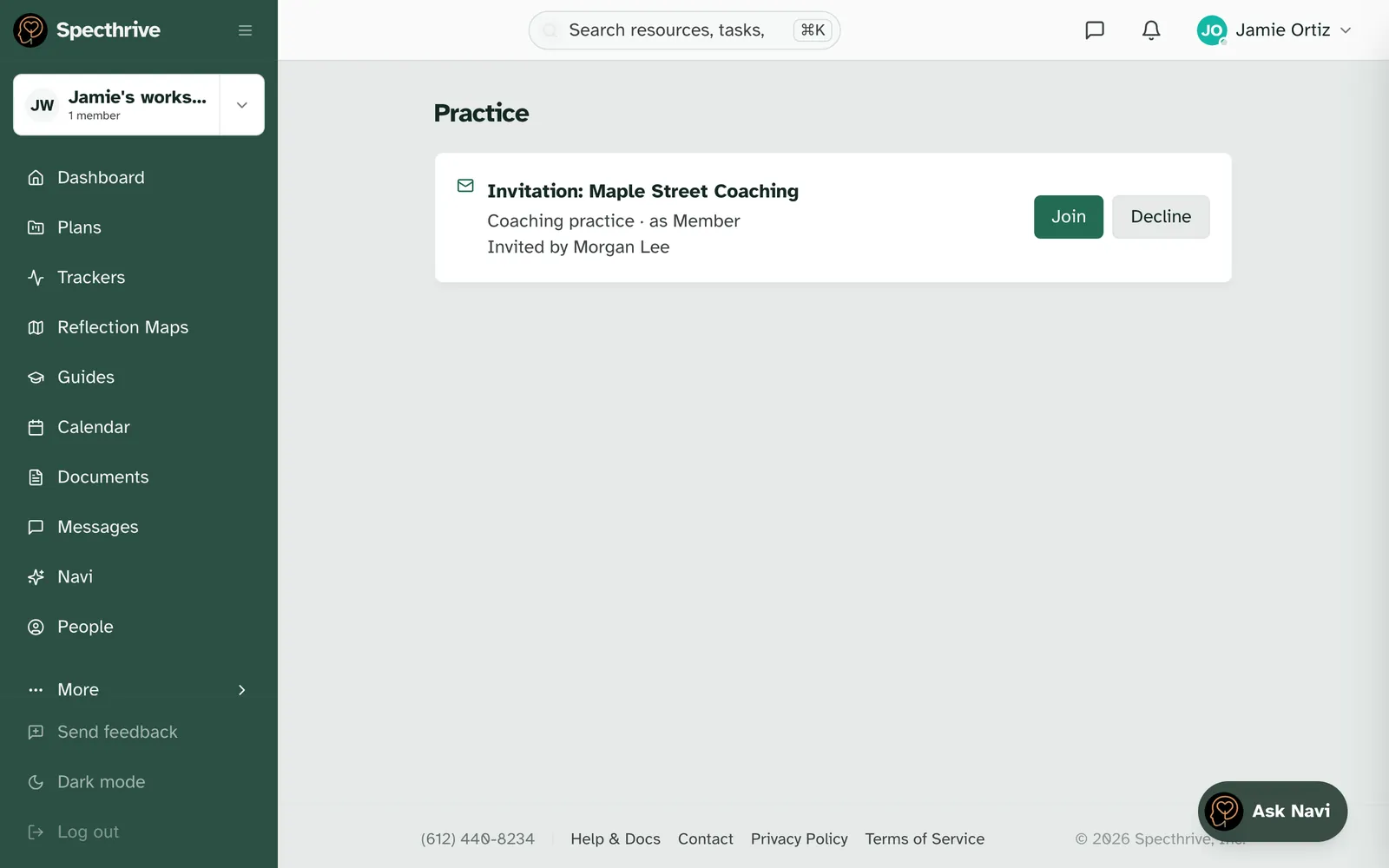
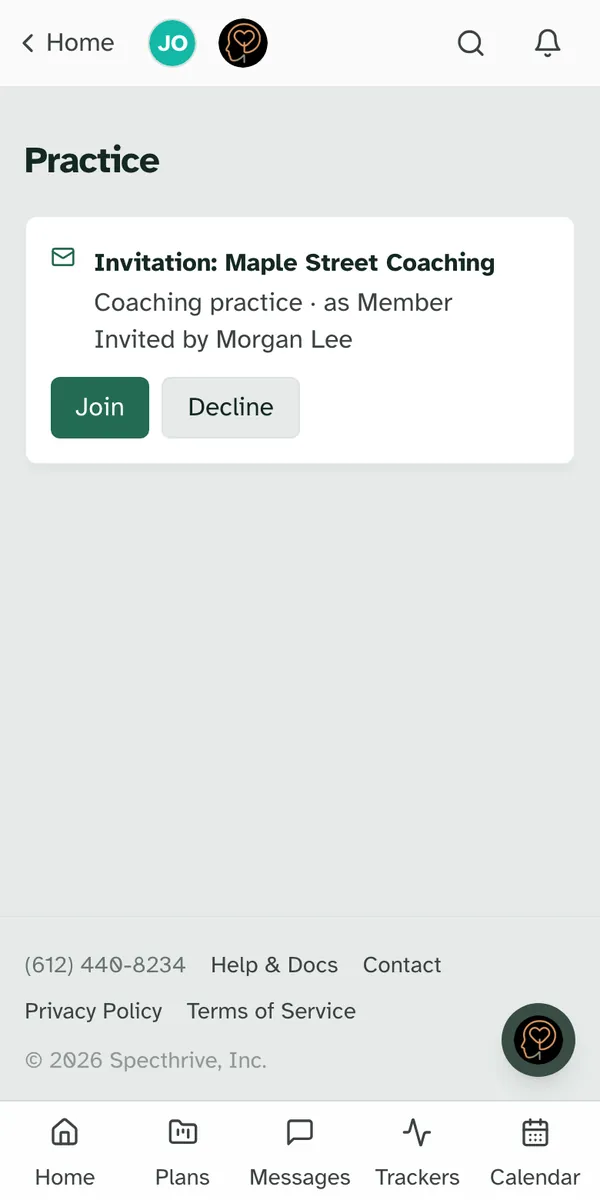
Open it signed in with the email address it was sent to. An invitation belongs to one address, and that address needs to be verified. If something doesn't line up, the page says what happened and what to do next, in one calm sentence: sign in with the address the invitation went to, for example, or ask whoever invited you to send a new one.
Practices are for adults. An account that belongs to someone under 18 can't join a practice. This has nothing to do with students: a coach can still invite a student, and a student can still answer questionnaires.
Your practice in Settings
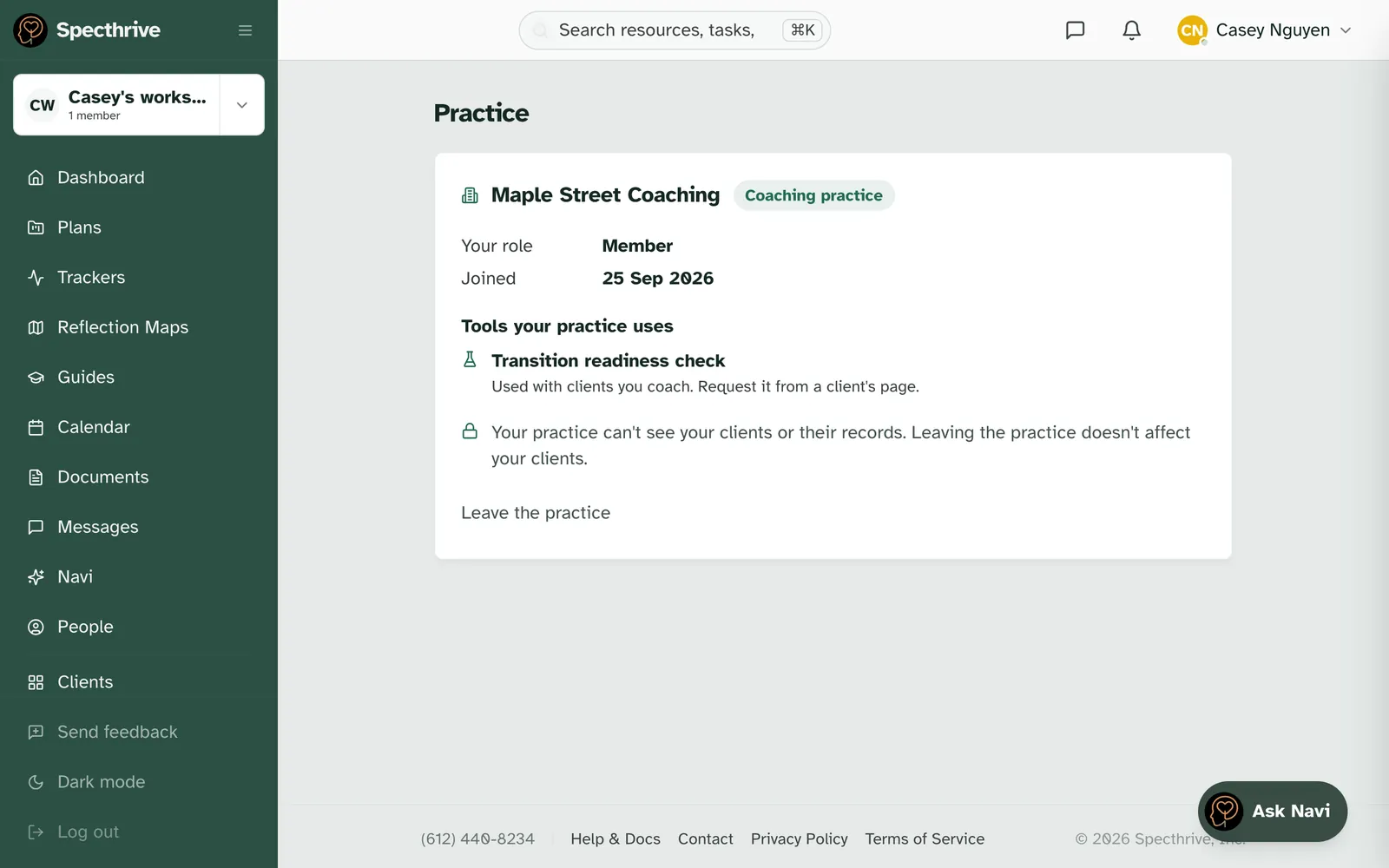
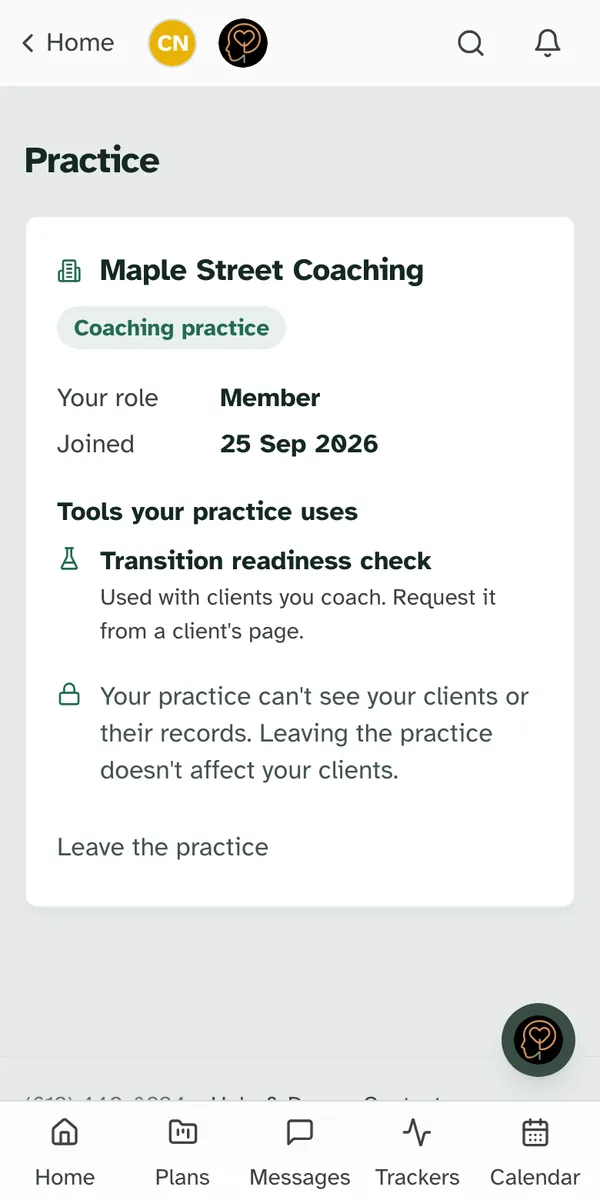
Settings → Practice shows the practice you belong to. You see your role, the day you joined, and Tools your practice uses. Under each tool: "Used with clients you coach. Request it from a client's page." The privacy promise is repeated at the bottom: "Your practice can't see your clients or their records. Leaving the practice doesn't affect your clients."
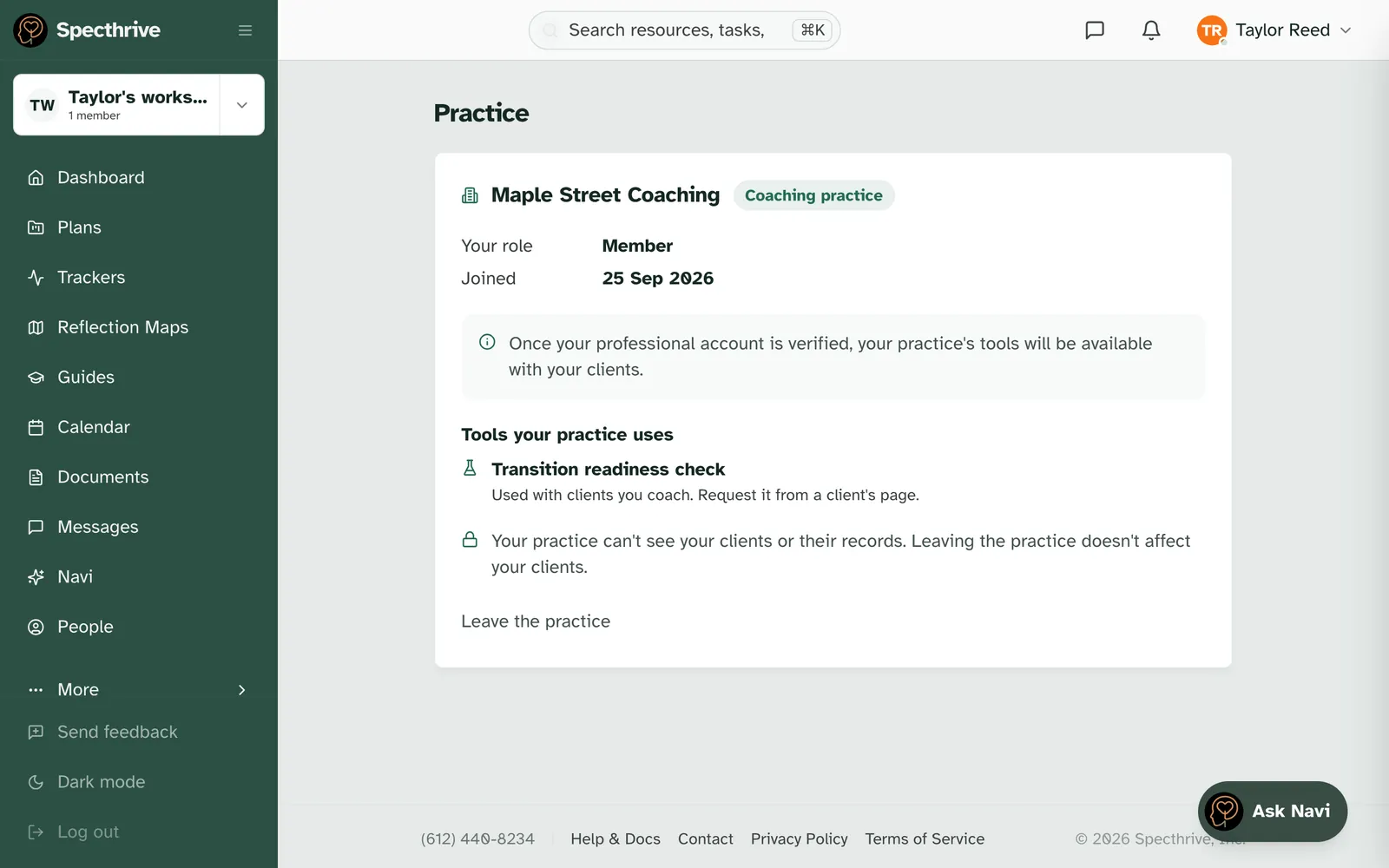
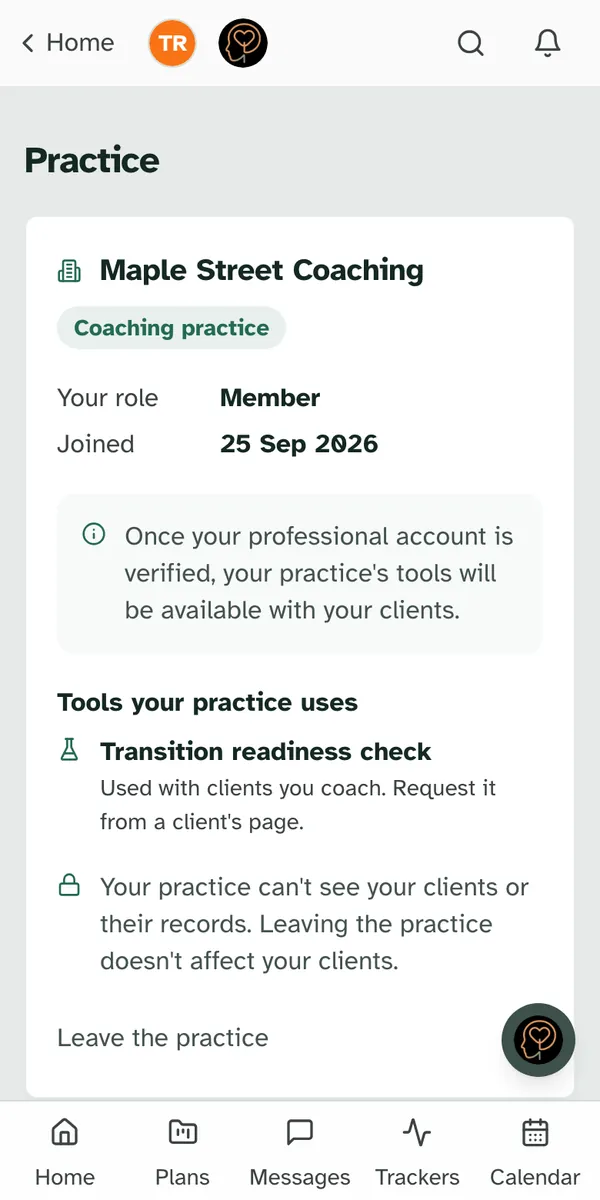
Not verified yet? That's an ordinary step, not a problem. Specthrive verifies professionals by hand. Until your account is verified, the page says: "Once your professional account is verified, your practice's tools will be available with your clients." Everything else works as usual.
Leave the practice is at the bottom of the card. It asks first, and says: "You'll stop having this practice's tools. Your clients and their records stay exactly as they are." Once you have left, the page says "You're no longer part of" and the practice's name. You see the same line if you had already been removed by the time you chose it.
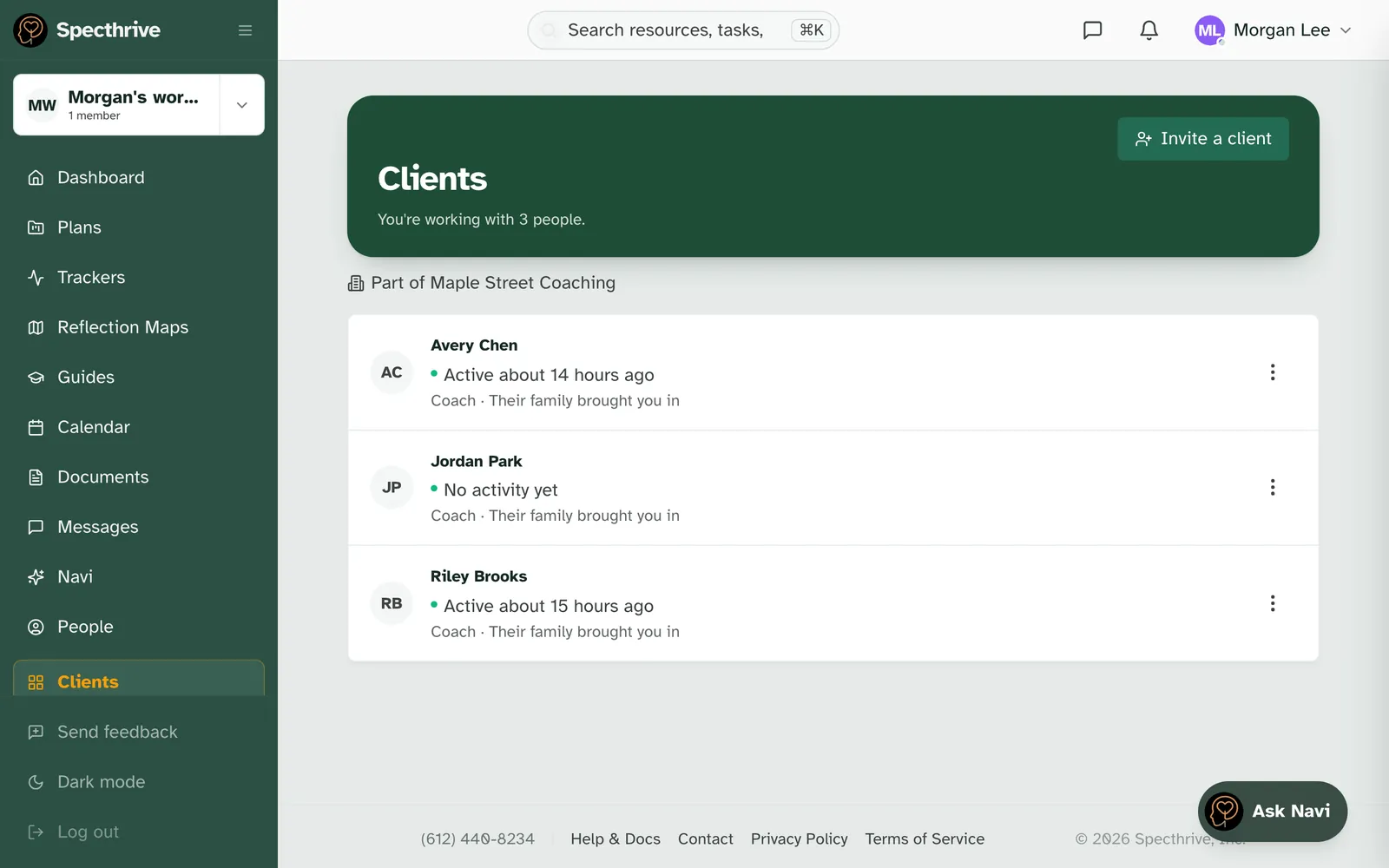
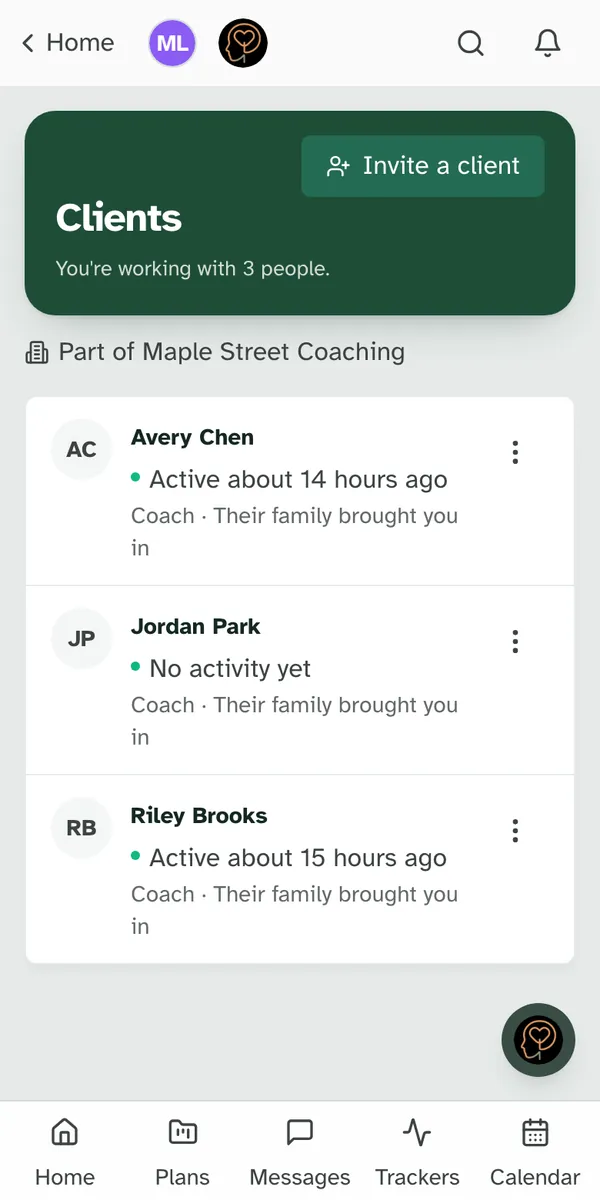
Your Clients page shows the practice too, as one quiet line under the header: "Part of" and the practice's name.
Your practice's tools
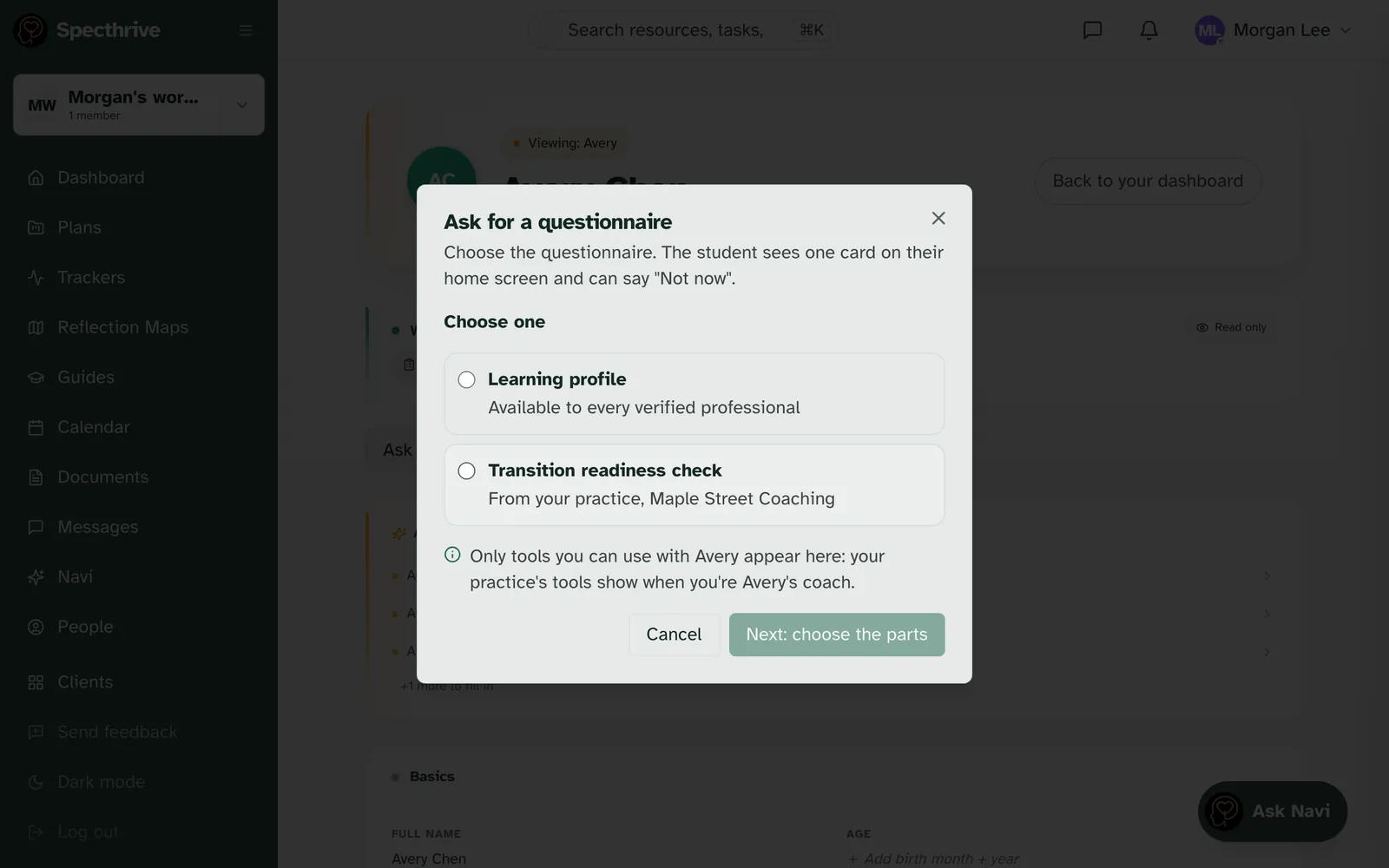
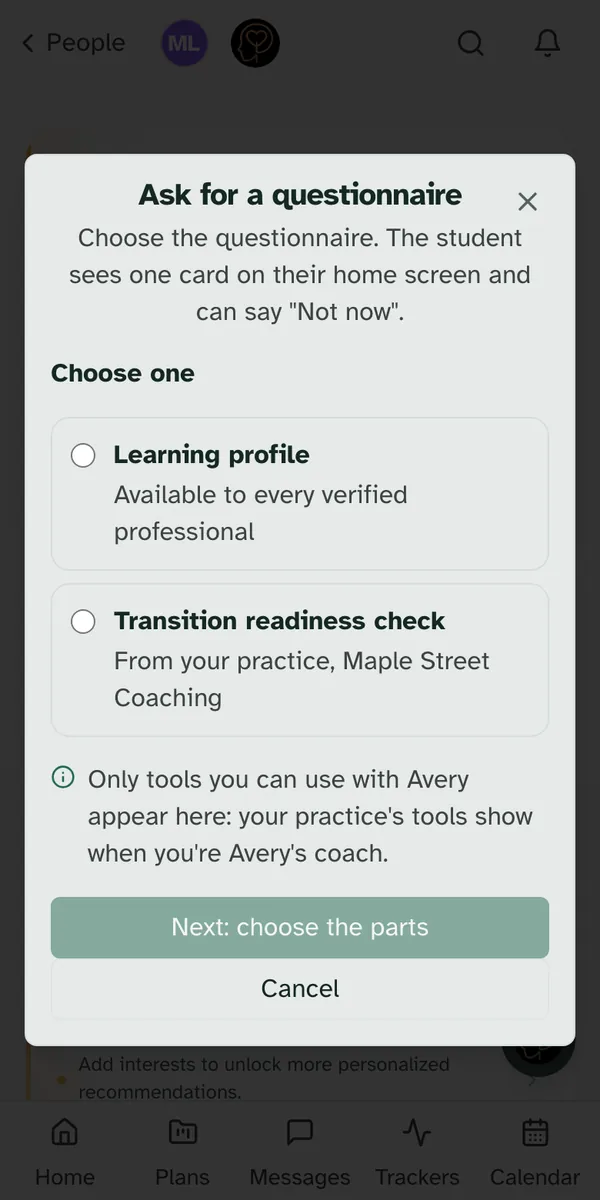
The Specthrive team decides which tools a practice has. When your practice has a tool, it appears in Ask for a questionnaire on a client's page with the line "From your practice," and the practice's name. Tools open to everyone read "Available to every verified professional". A practice's tools show only with clients you coach.
If a tool is taken away from the practice, nothing in progress is cut short. New requests stop. Questionnaires that are already open carry on until they close. Asking for one, and reading it with your student, is in Ask a student for a questionnaire and read it together.
Managing the members
This section is for a practice's owners and admins. A member doesn't see any of it.
Members sits below your practice card and reads "You manage this practice's members". It lists everyone in the practice with their email and role. A member who isn't verified yet carries the note "Not verified yet: can't use the practice's tools".
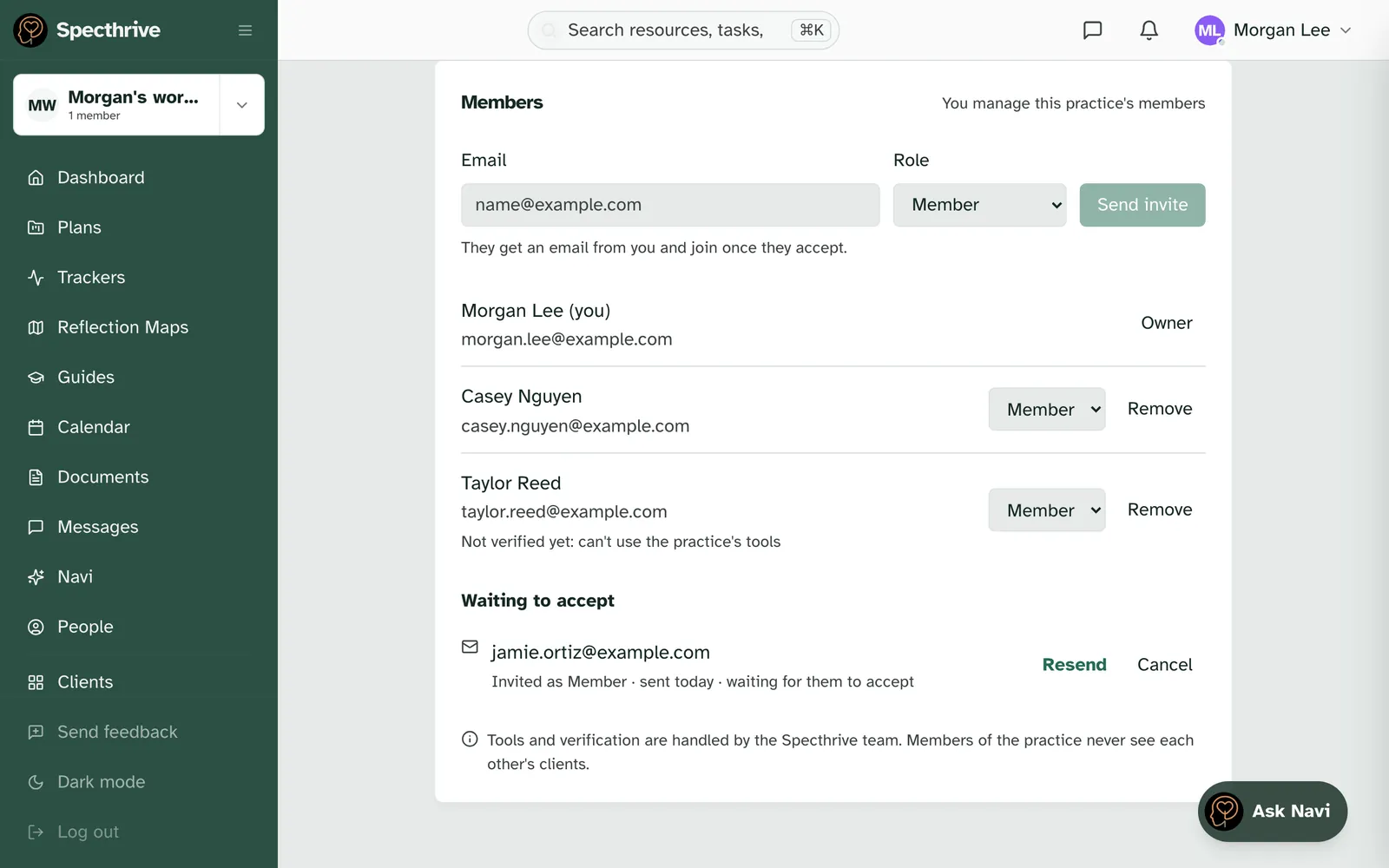
To invite someone, enter their Email, choose a Role, and Send invite. "They get an email from you and join once they accept." They don't need a Specthrive account yet.
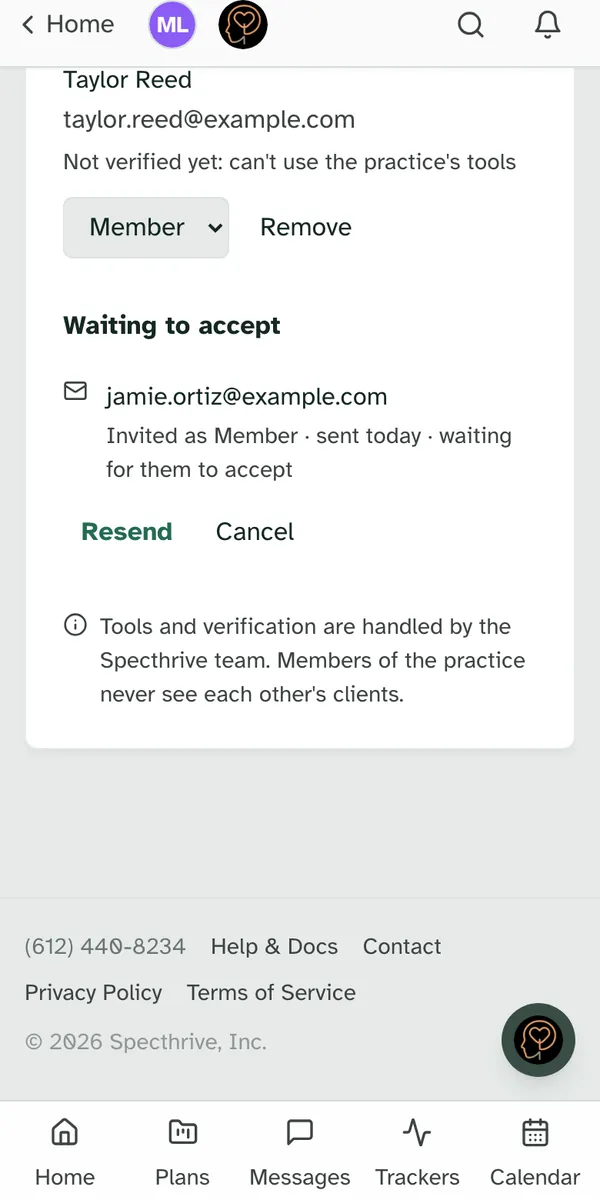
Waiting to accept lists invitations nobody has answered, for example "Invited as Member · sent today · waiting for them to accept". Resend sends a fresh link, and Cancel withdraws the invitation. Once a link runs out, the row says so and offers Resend.
To change someone's role, pick a new one from the menu on their row. Making someone an owner, or taking an owner's role away, asks you to confirm first.
Remove asks you to confirm, and explains: "They will no longer belong to this practice. Their account, and anything their clients have shared with them, stay as they are."
Owners and admins can do slightly different things:
| Owner | Admin | |
|---|---|---|
| Invite members and admins, resend, cancel | Yes | Yes |
| Change a member's or admin's role, remove them | Yes | Yes |
| Invite, promote, change or remove an owner | Yes | No |
| Rename the practice | Yes | No |
A practice always keeps at least one owner. If you are the only owner, you can't step down, be removed or leave until someone else is an owner: "A practice needs at least one owner. Make someone else an owner first."
Tools and verification stay with the Specthrive team. As the page puts it: "Tools and verification are handled by the Specthrive team. Members of the practice never see each other's clients."
Getting help
If something here does not match what you see on your screen, get in touch.
Still have a question?
If this guide did not cover your situation, reach out. We read every message.